Not sure if this could be the issue but it’s worth a try.
If you didn’t install the DirectX version that come with the game, do install it, for some reason, when you download the game and run it, Steam don’t install the complements, probability of IMC not setting up that option:
- Steam\steamapps\common\TreeOfSavior_CommonRedist\DirectX or
- Steam\steamapps\common\TreeOfSavior\release\patch\DirectX10.
Removing game configuration files:
- Go into the game folder: Steam\steamapps\common\TreeOfSavior\release.
- Locate and delete:
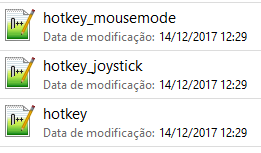
- Start the game, these files will be recreated with the default settings.
Steam Settings:
- Do a single click on Steam Icon in the tray and go on Settings.
- When the window open, go on Controller in the list on the left.
- Click in General Settings (or Main Settings, not sure since mine is non-english language).
- It will open a Big Picture window with controller settings, check if the Time to Shutdown Controller is set to something, if it is, set it to never, if it’s set to never then set it to 5 mins (this one is actually mine setting and the default one I think).
Repairing the game:
- Open your Steam Library and do the following (on ToS of course):
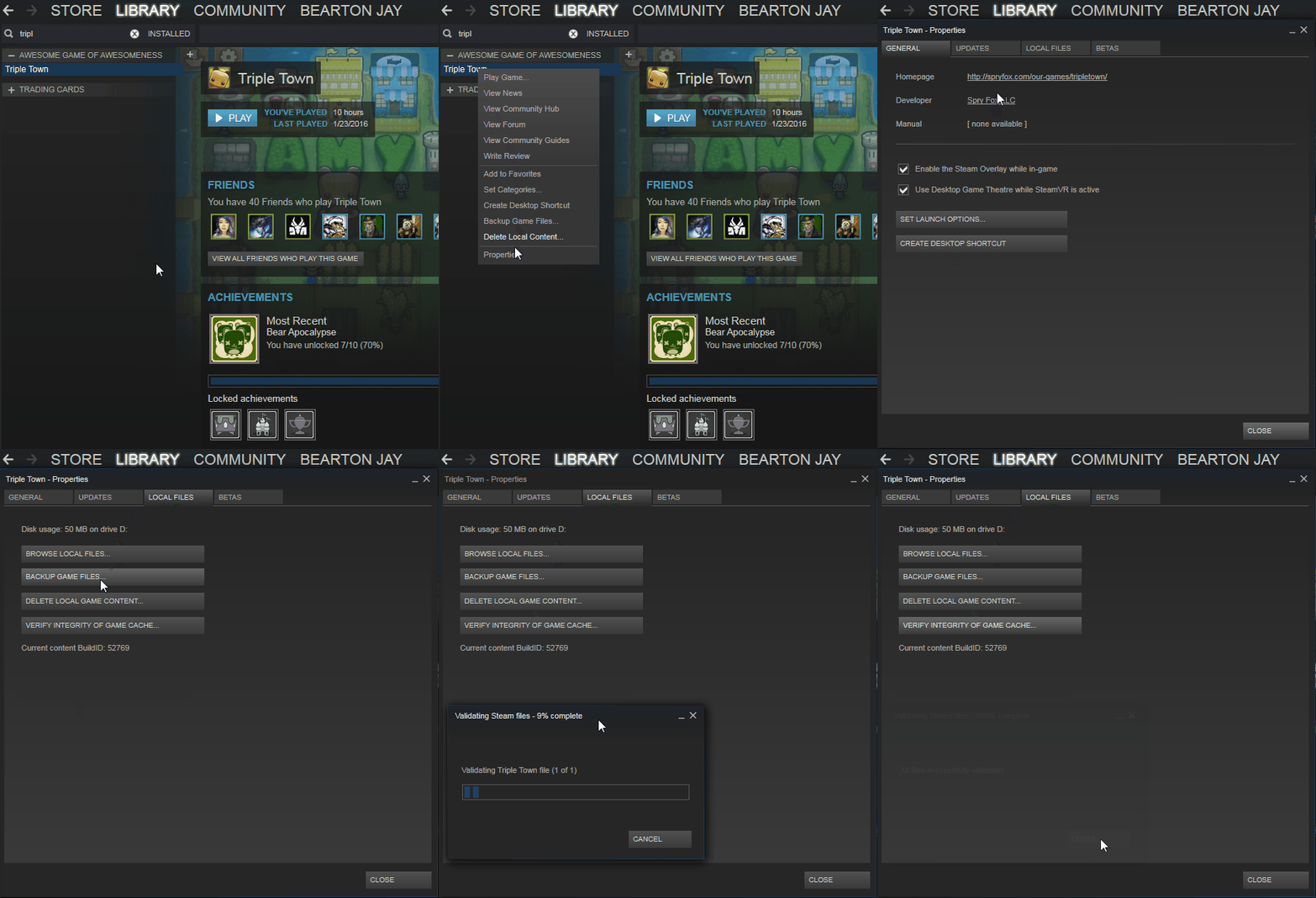
On a more aggressive approach you can try is:
WARNING!!! This may cause problems in the system, if you don’t know what following procedure is leave it be to avoid chances of system damage (software).
- IMPORTANT!!! Make a Restore Point before starting the procedure!
- Note that you will need Administrator Privileges to modify anything in the following procedure.
- Unplug your controller.
- Open Windows Explorer.
- In the Search Field, type: xinput.dll and let it finish the search.
- It will show lots of xinput files, but the ones you really want are these (in the folders I marked):
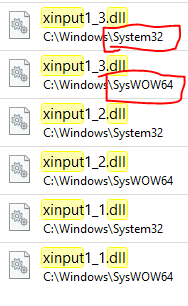
- Move them to a different folder. Ex: Create a DXBKP folder inside the files current folder.
- Now reinstall the DirectX (it will download the necessary files and install it).
- After it finish, restart the machine and when it finish restarting plug the controller again and test if it will not work.